 pylot
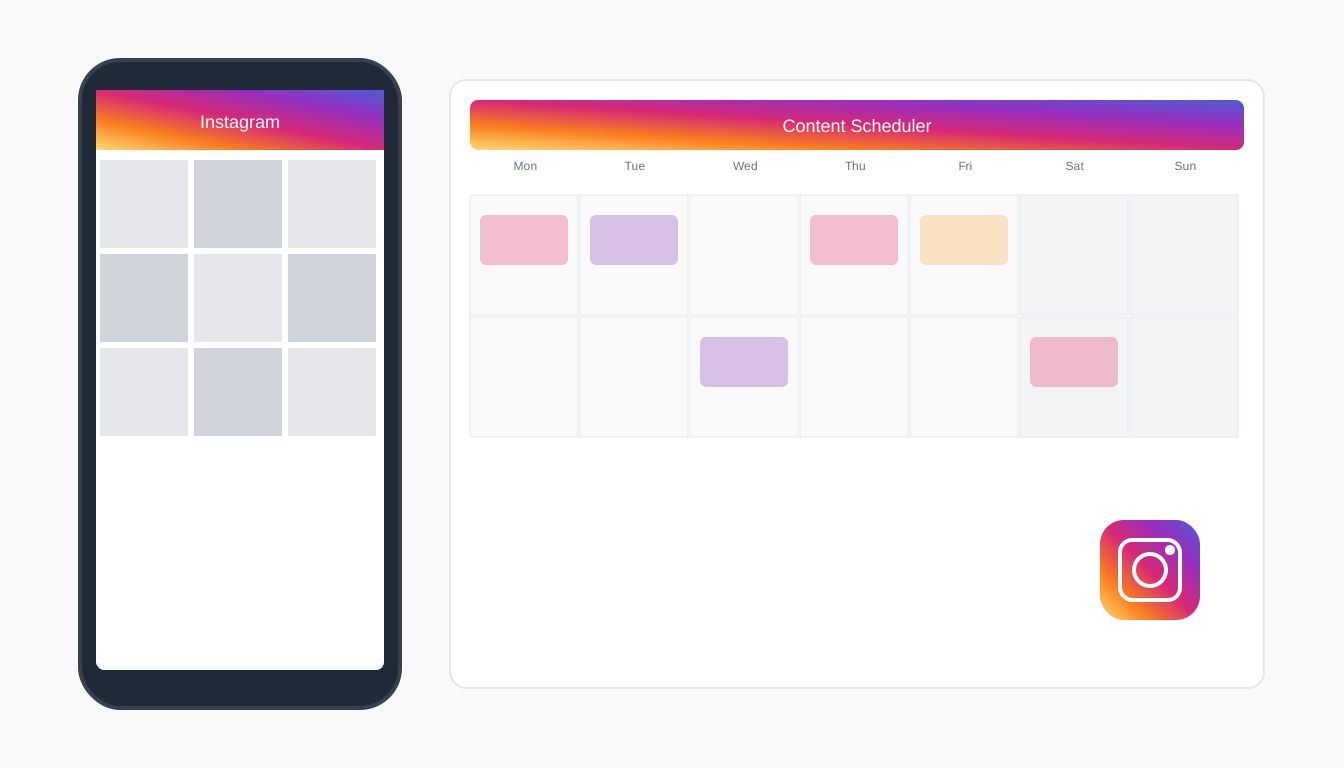
Claude can write a great Instagram caption. Getting it onto Instagram is another story: copy the text, find or make an image, open the app, paste, schedule, repeat. With an MCP server, Claude can do the whole job from the chat, and you only check the result.
This guide shows how to connect Claude to Instagram through Pylot's MCP server, in the Claude apps and in Claude Code, and how to ask for posts that come out right the first time.
What is MCP?
MCP (Model Context Protocol) is an open standard that lets AI assistants use outside tools. An MCP server exposes a set of tools, such as "create post" or "generate image", and Claude decides when to call them based on what you ask.
Instagram doesn't offer an MCP server of its own, and its API only allows posting to professional (business or creator) accounts through an approved app. So the practical route is an MCP server from a scheduler that already has that access. Pylot's MCP server connects to your Instagram account through Meta, and gives Claude tools to:
- List your connected accounts
- Write captions in your brand voice
- Generate images in your brand colours, with your logo
- Upload your own photos or videos
- Create drafts, schedule posts and, only when you say so, publish
Before you start
You need:
- An Instagram professional account (business or creator), linked to a Facebook Page. That's Meta's requirement for any app that posts on your behalf.
- A Pylot account with Instagram connected. Pylot also reads your website to learn your brand voice and visual style.
- A Pylot API key. In Pylot, open Settings → API keys and create one. It starts with
pyl_live_.
Option 1: Claude apps (desktop and web)
Claude adds remote MCP servers as custom connectors.
- In Claude, open Customize → Connectors, select + Add, then Add custom connector. On Team and Enterprise plans, an owner adds it under Organization settings → Connectors.
- Enter a name and the server URL:
Name   Pylot
URL    https://www.getpylot.com/api/mcp
- Select Continue, choose No sign in, and add a request header with your key:
Authorization: Bearer pyl_live_…
- Turn the Pylot connector on in a chat.
Adding a custom connector yourself needs a Pro or Max plan; on Team and Enterprise, an owner adds it for everyone. The Pylot for Claude page has the current steps with links to Claude's own docs.
Option 2: Claude Code
Put your key in your shell, then add the server:
export PYLOT_API_KEY=pyl_live_…
claude mcp add --transport http pylot https://www.getpylot.com/api/mcp --header "Authorization: Bearer $PYLOT_API_KEY"
Start Claude Code, run /mcp to check that pylot is connected, and ask for a post. See Pylot MCP for Claude Code for more.
Your first Instagram post from Claude
Instagram posts always need an image or video, so ask for one in the same message:
Make an Instagram post about our new autumn menu with a 4:5 brand image, and schedule it for Thursday at 9am.
Behind the scenes, Claude:
- Calls list_channels to find your Instagram account
- Calls generate_captions to write the caption in your brand voice
- Calls generate_image to make the image in your colours
- Calls create_post with the caption, the image and a time, which creates and schedules the post
The post appears in your Pylot calendar. If your Instagram account is connected through a Facebook Page, ask for "Instagram only" when you don't want it on Facebook too.
Using your own photos
Generated images are fine for announcements, but your own photos usually do better. Give Claude a public link to the photo and it uploads it with upload_media:
Use this photo for an Instagram post about our Saturday market stall: https://example.com/stall.jpg. Write the caption and leave it as a draft.
Prompts that work well
- "Make three Instagram posts for next week about our autumn menu, each with a brand image, and schedule them for Tuesday, Thursday and Saturday at 9am."
- "Write an Instagram caption for our 20% off weekend sale, create a 4:5 image, and schedule it for Friday at 6pm."
- "Show me my scheduled posts for this week, then move Thursday's to 11am."
- "Draft an Instagram post celebrating five years in business. Don't schedule it; I want to read it first."
Put the real facts in your prompt: prices, dates, offers. Pylot's caption writer won't invent them.
Can Claude publish without asking me?
Not by accident. create_post always makes a draft unless you give it a time, so posts wait in your calendar. Publishing immediately uses a separate publish_post tool that requires an explicit confirmation and is marked as destructive, so Claude can ask you before running it.
If you ever want to cut Claude off, delete the API key in Pylot settings.
What it costs
Writing captions, creating drafts and scheduling are free on any Pylot plan. Each generated image uses 1 credit, refunded if generation fails. Claude uses the same plan, limits and credit balance as your Pylot dashboard.
Frequently asked questions
Can I post Instagram Reels or Stories from Claude?
Yes. When Claude creates the post it can set the format to feed, reel or story. Reels need a video, so upload one first or use a video made in Pylot.
Does this work with personal Instagram accounts?
No. Meta only lets apps post to professional accounts. Switching a personal account to a creator or business account is free and takes a minute in Instagram's settings.
Can I post to other platforms the same way?
Yes. The same connector works for Facebook, LinkedIn, X and TikTok. Ask Claude for "the same post on Facebook and LinkedIn" and it creates one post with several targets.
What about ChatGPT?
ChatGPT connects through a custom GPT action instead. See how to schedule social media posts from ChatGPT.
Ready to try it? Try Pylot 7 days for $0 (card required), connect Instagram, and create your API key under Settings. The full list of MCP tools is on the Pylot MCP page.